TagBot guide.
Every screen here is a real capture of TagBot 0.3.0-alpha.44 running on a copy of a Dave Matthews Band show. Nothing was written to a real library.
Read the review table
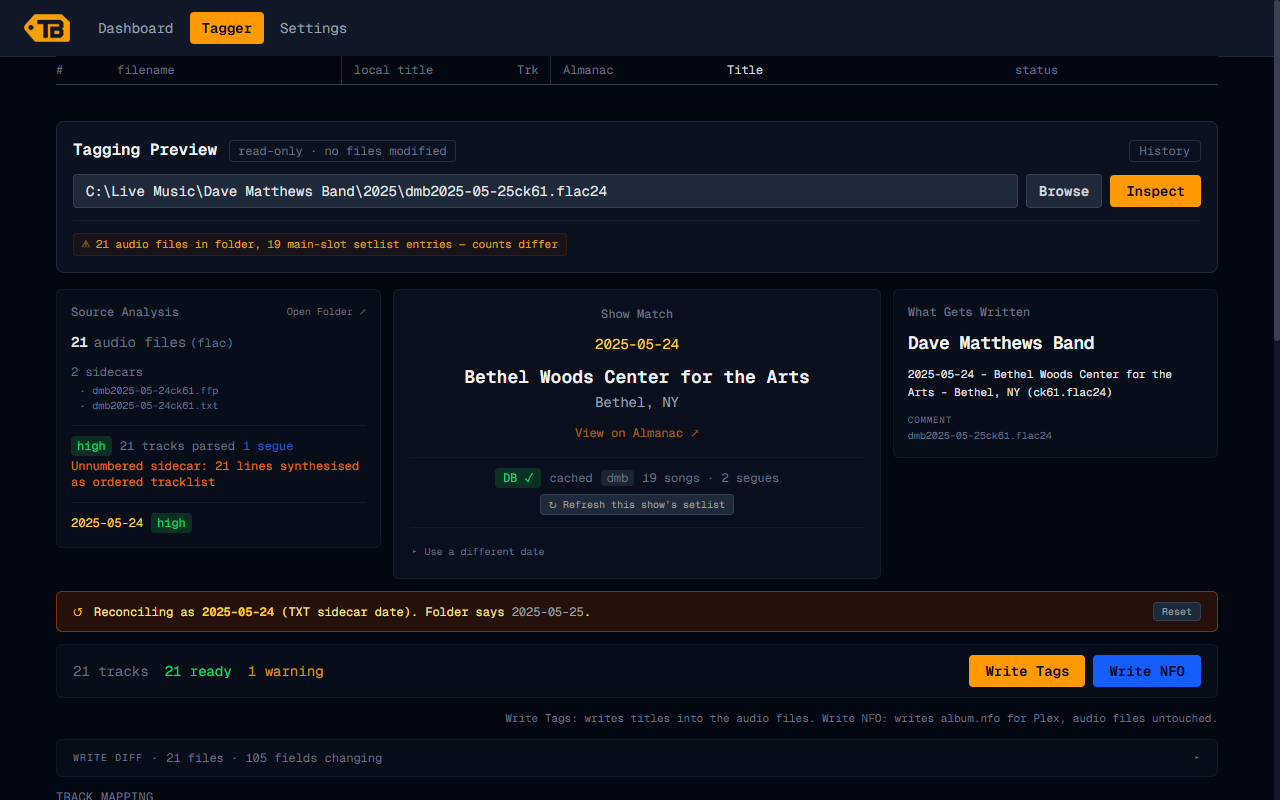
Type or Browse to a show folder (or a parent folder of several shows, see Batch) and press Inspect. TagBot reads the folder name, any .txt sidecar and the files, fetches the setlist, and shows what it found. Nothing is written yet: the screen says read-only · no files modified.
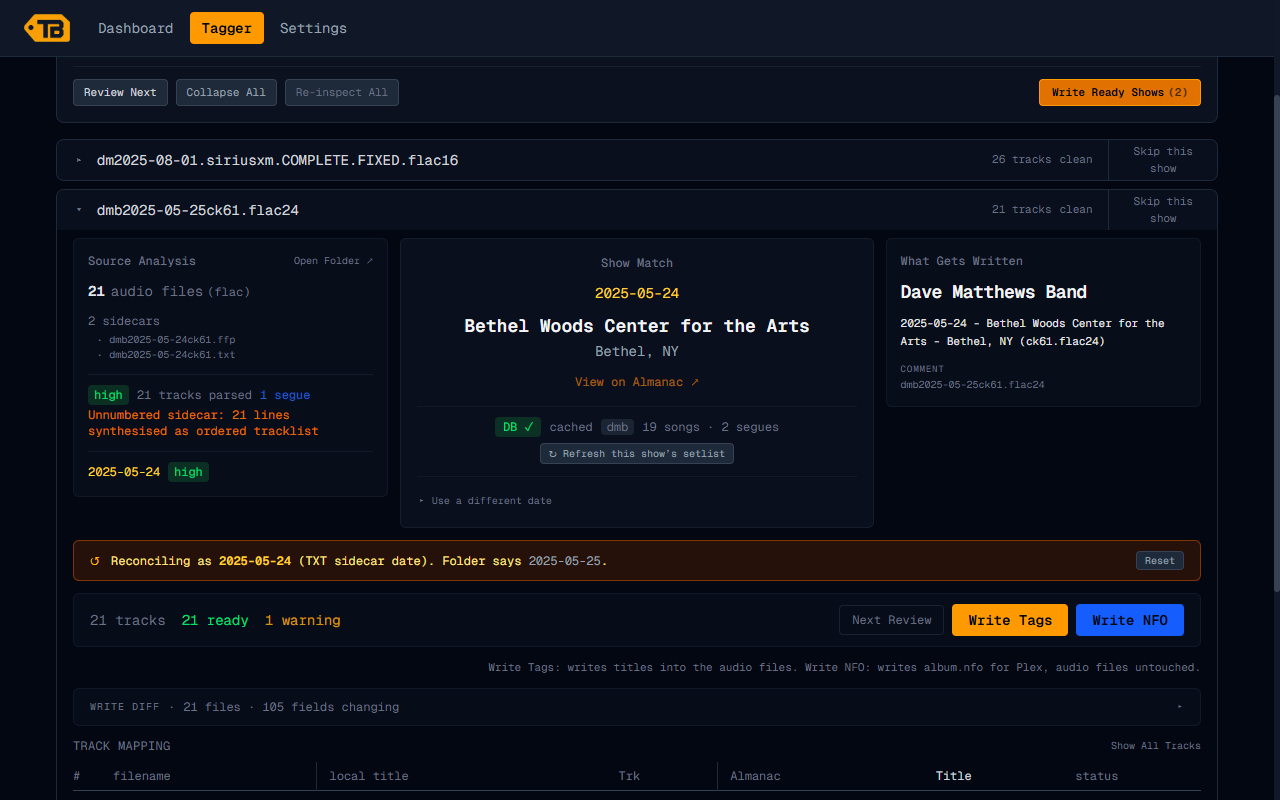
Below that is the track table. Each row is one file. The left side is what the file has now, the right side is the setlist title TagBot will use, and the status says how sure it is.
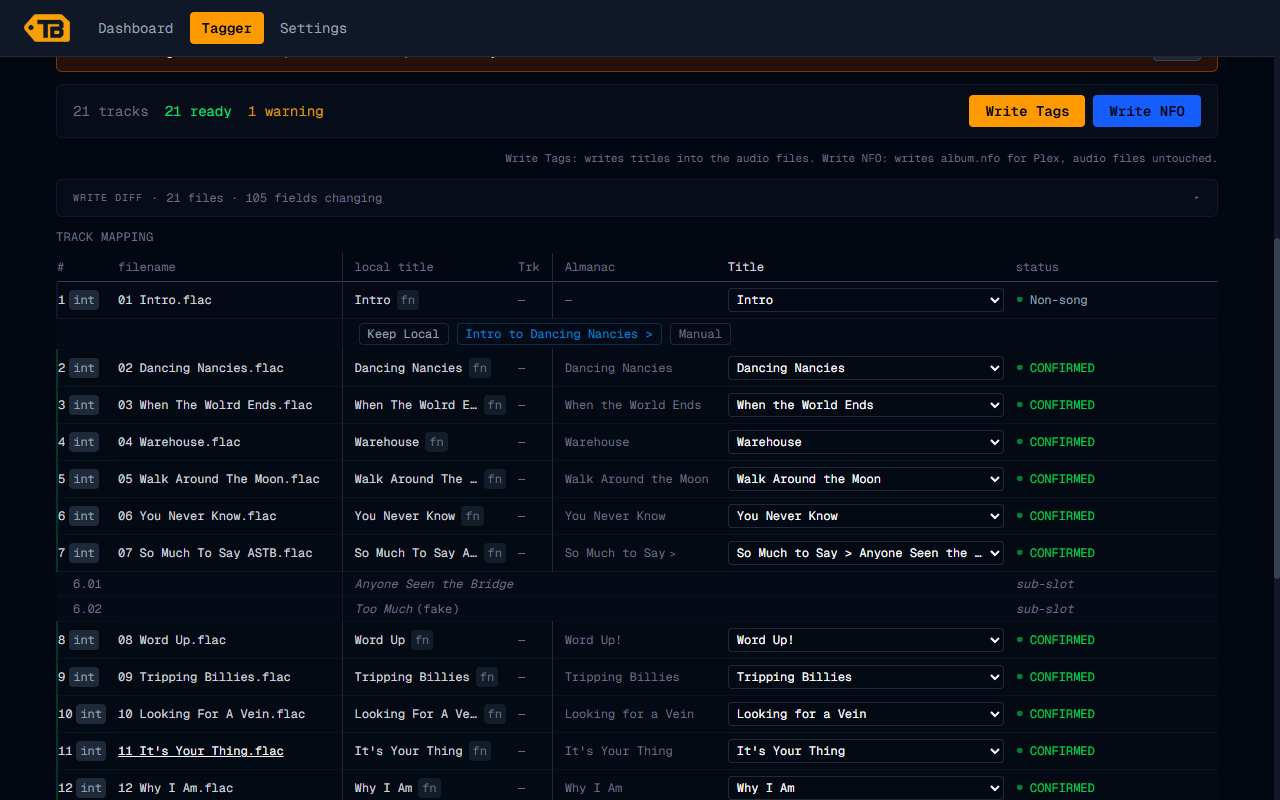
- CONFIRMED: exact title match with the setlist.
- ALIAS: matched through a known alternate name (a file called "Don't Drink The Water Intro" becomes "Don't Drink the Water").
- STRONG MATCH, POSITION MATCH, PARTIAL MATCH, CLOSE MATCH: the title and the setlist position agree to different degrees. The Show Legend button in the corner explains each one.
- LOCAL ONLY: the file has a title the setlist does not, so it is kept as is.
- Non-song: intros, crowd, tuning and stage banter.
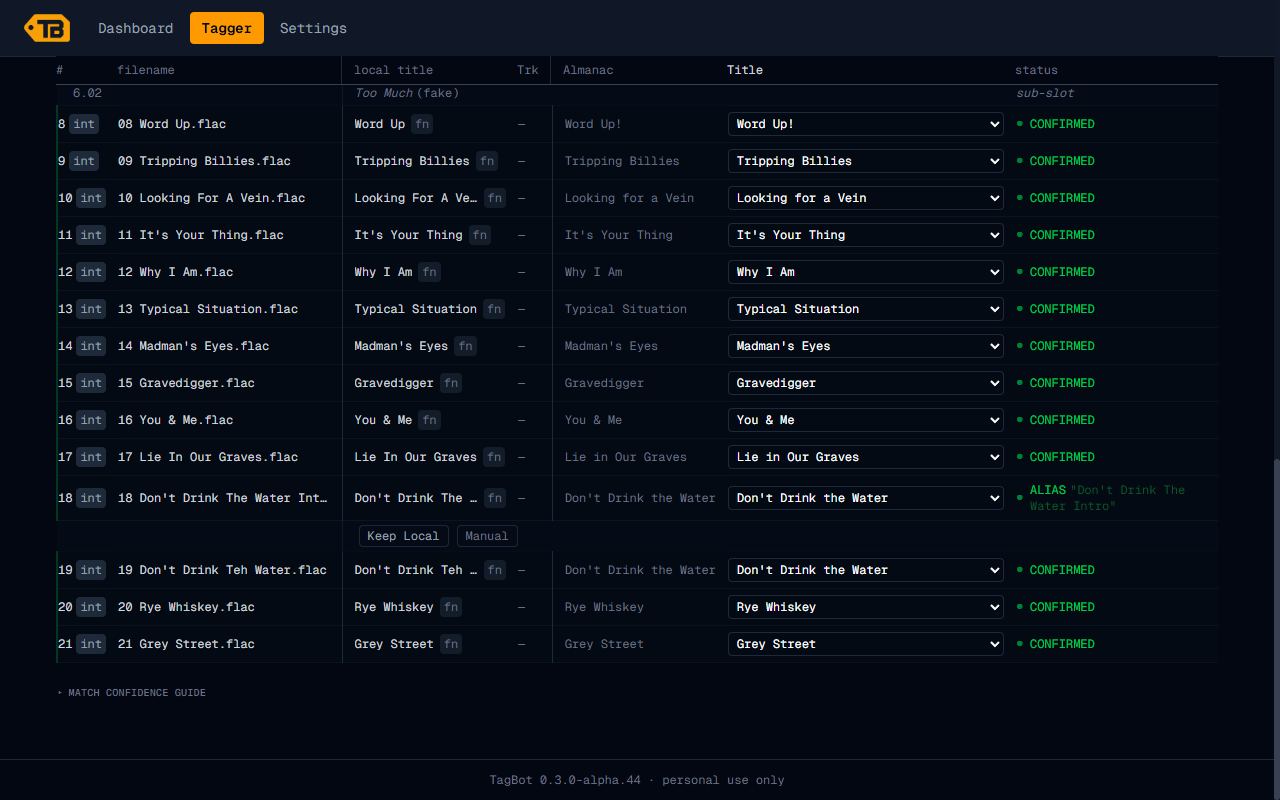
Stage banter and intros get one-click choices on their row: keep the local title, use a suggested title such as "Intro to Dancing Nancies >", or type one in Manual. A song TagBot cannot place shows as unmatched with an Attach button so you can pick the file yourself. Every title in the table is a drop-down you can override. Flags (the red marks, the warnings count, "3 need review") are TagBot telling you where to look first.
A wrong folder date
Taper folders are often named for the wrong night. When the folder name and the .txt sidecar disagree, TagBot stops and asks. In this demo the folder is named 2025-05-25 but the sidecar says 2025-05-24, and the setlist only fits the 24th.
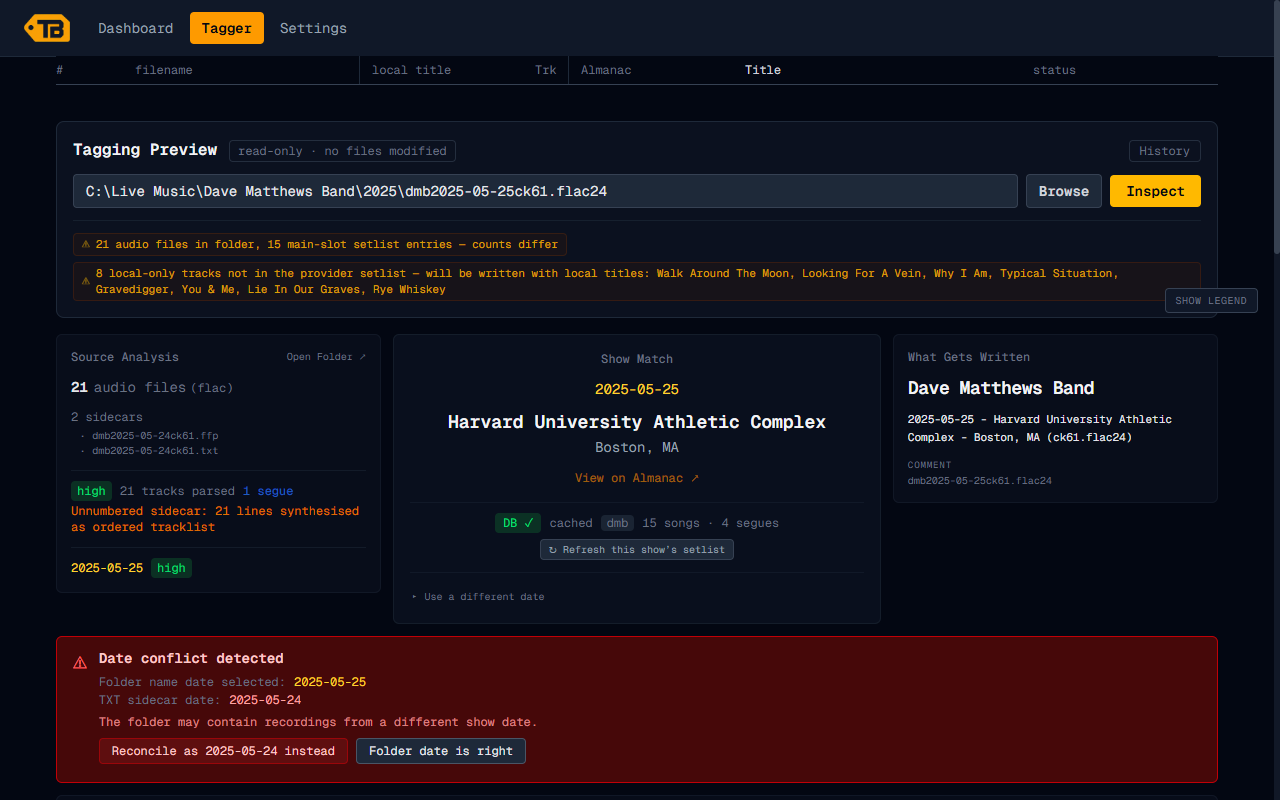
Press Reconcile as 2025-05-24 instead and the show becomes Bethel Woods, with every track matched. Press Folder date is right to keep the folder date; TagBot remembers that choice for that folder. Reset (or Undo) takes it back.
Write Tags
Write Tags puts TITLE, ARTIST, ALBUM, COMMENT, TRACKNUMBER and TOTALTRACKS into each file (Vorbis comments for FLAC, ID3 for MP3). Filenames, folder names and sidecar files are not touched. It asks first, and says plainly what it does to the files.
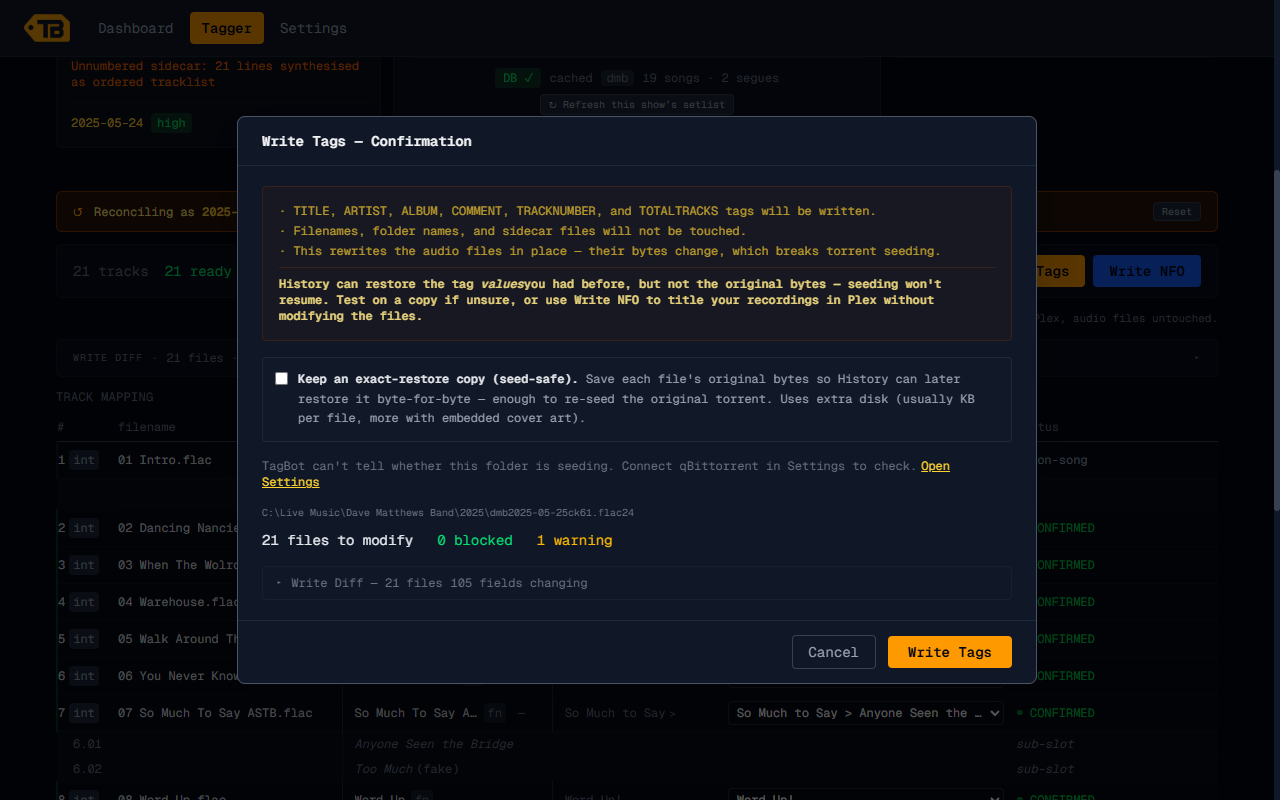
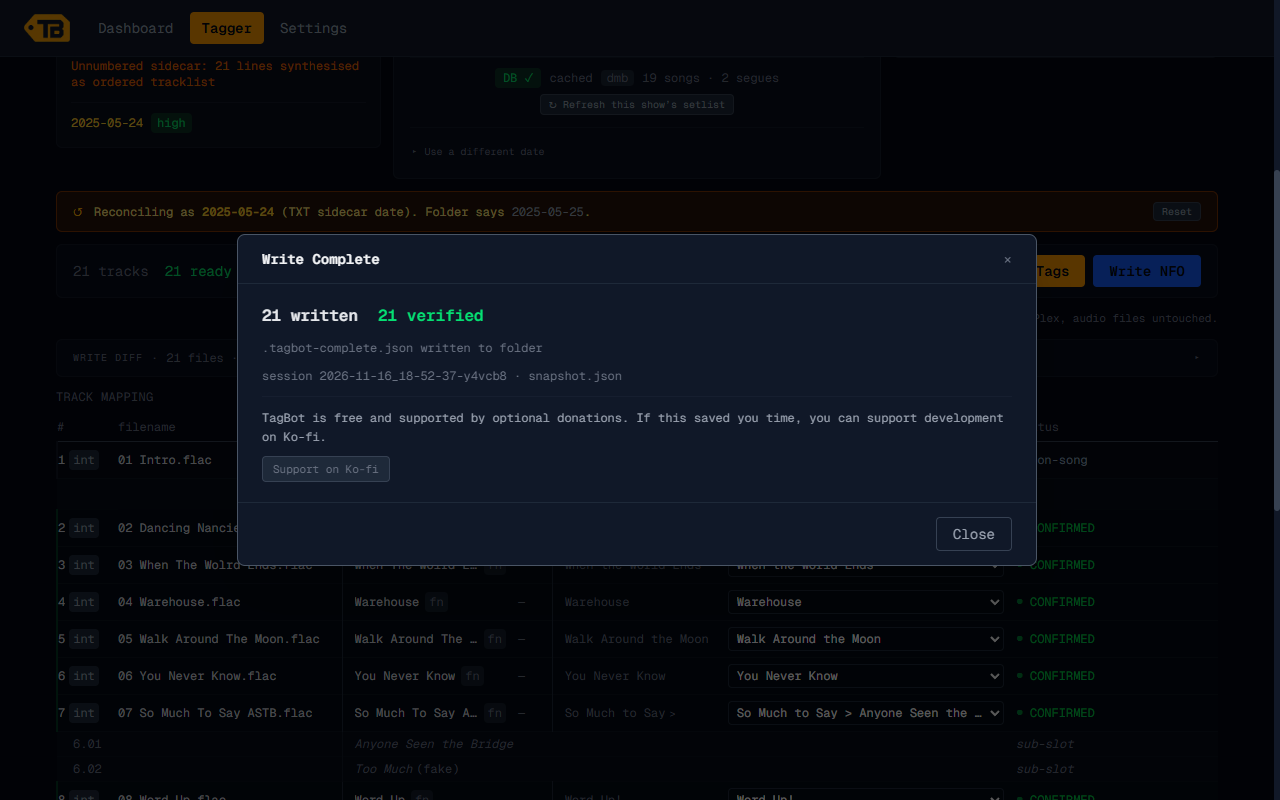
Rows you have not reviewed are held back until you tick Write unreviewed rows anyway. When it finishes, TagBot re-reads every file and reports how many verified.
Write NFO
Write NFO adds one album.nfo file to the folder and changes no audio file at all. It is the way to get setlist titles into Plex while leaving a folder exactly as it is, which matters for anything you are seeding. It asks first, and if there is already an album.nfo that TagBot did not write, it keeps the old one as album.nfo.bak.
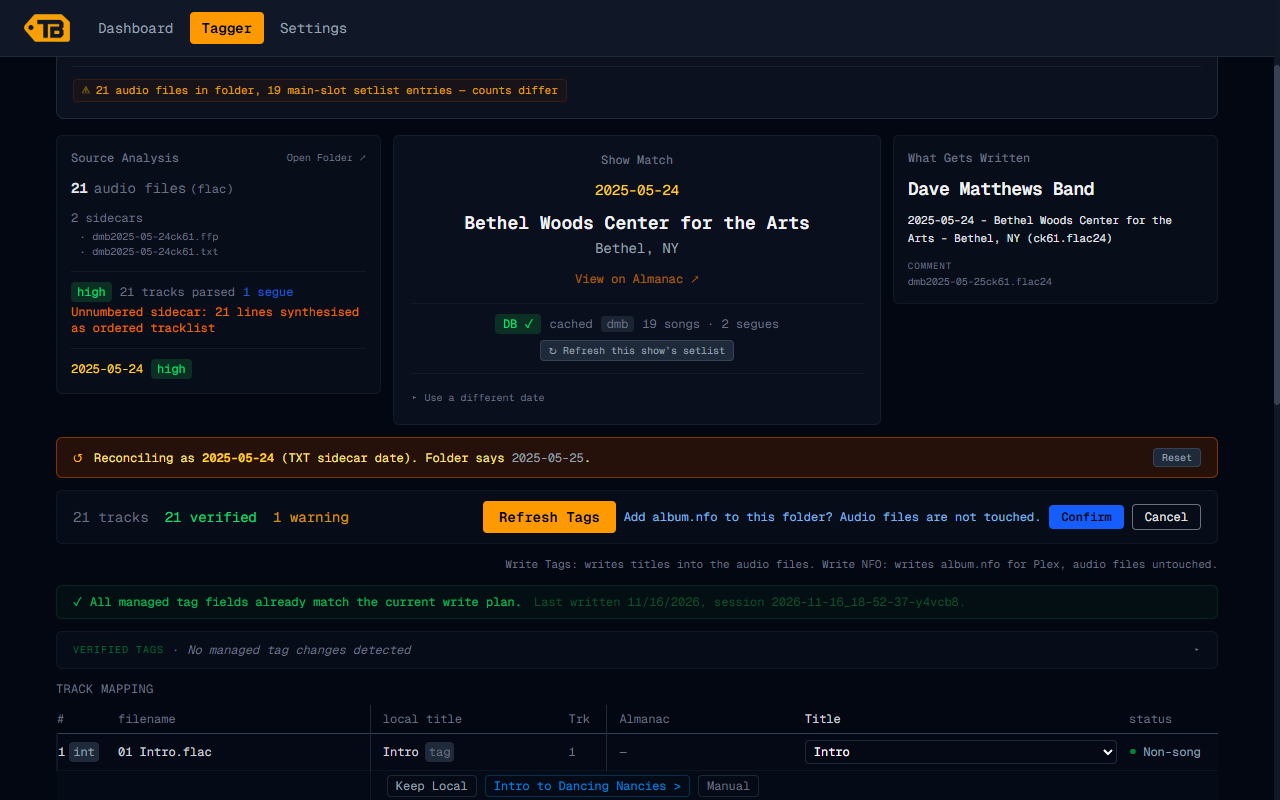
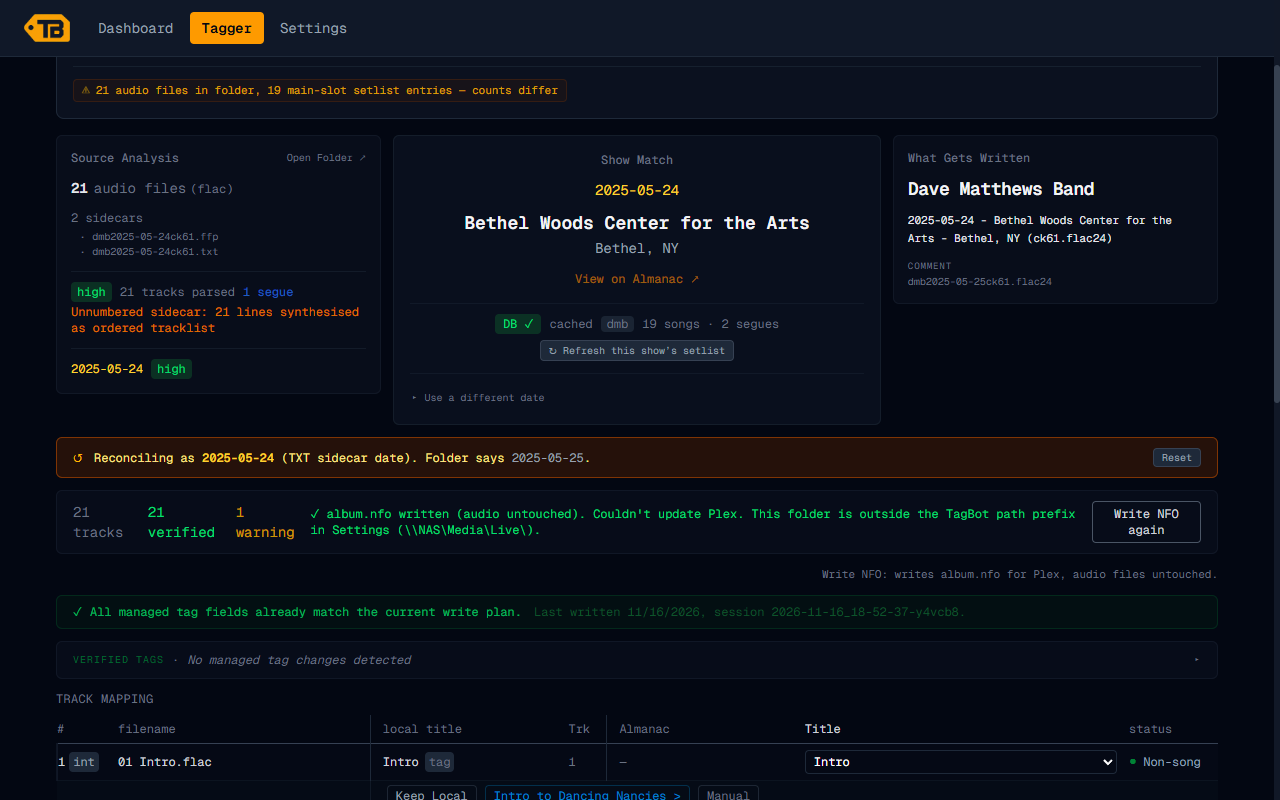
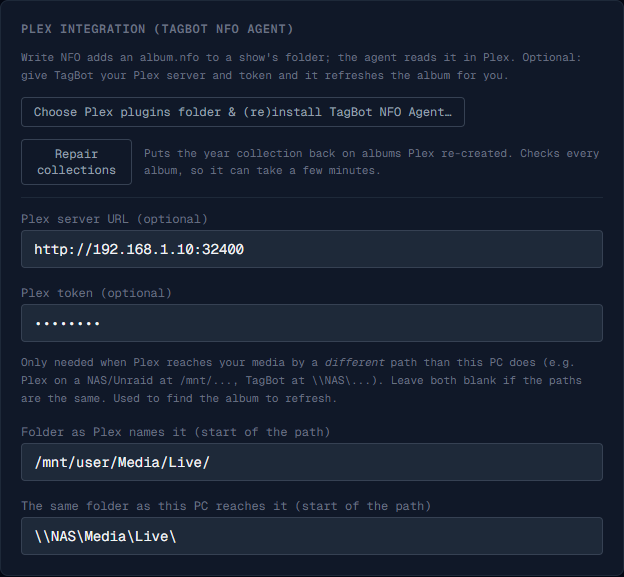
If you gave TagBot your Plex address and token in Settings, it asks Plex to refresh the album for you. Otherwise use Refresh Metadata on the album in Plex. Batch has a button that writes an NFO for every ready folder.
Protect seeding
Write Tags rewrites each file, so a torrent that is seeding the folder no longer matches its files and stops seeding. Private trackers can flag that. TagBot gives you three ways around it:
- Use Write NFO. No audio byte changes, so nothing about the torrent changes.
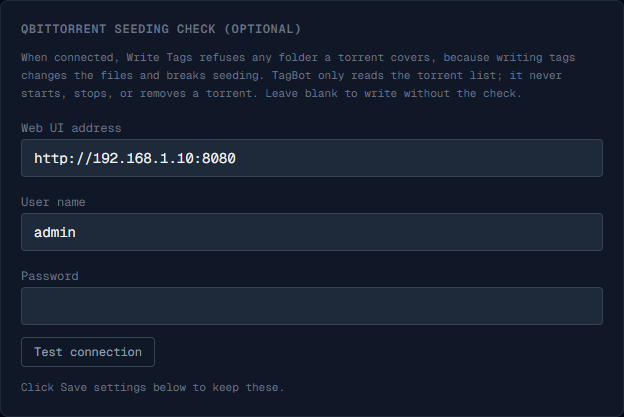
- Connect qBittorrent in Settings (see below). TagBot then refuses Write Tags on any folder a torrent covers. It only reads the torrent list and never starts, stops or removes a torrent. Without it, the confirmation says TagBot cannot tell whether the folder is seeding.
- Keep an exact-restore copy.Tick the box on the Write Tags confirmation and TagBot saves each file's original bytes, so History can later put the file back byte for byte, enough to re-seed the original torrent. It uses a little extra disk.
If you only have the originals in a seeding folder, tag a copy, or use Write NFO.
History and Restore
Every write is logged. Open History to see each session with its time, folder and results. Detail shows what changed in each file; Restore writes back the previous tag values.
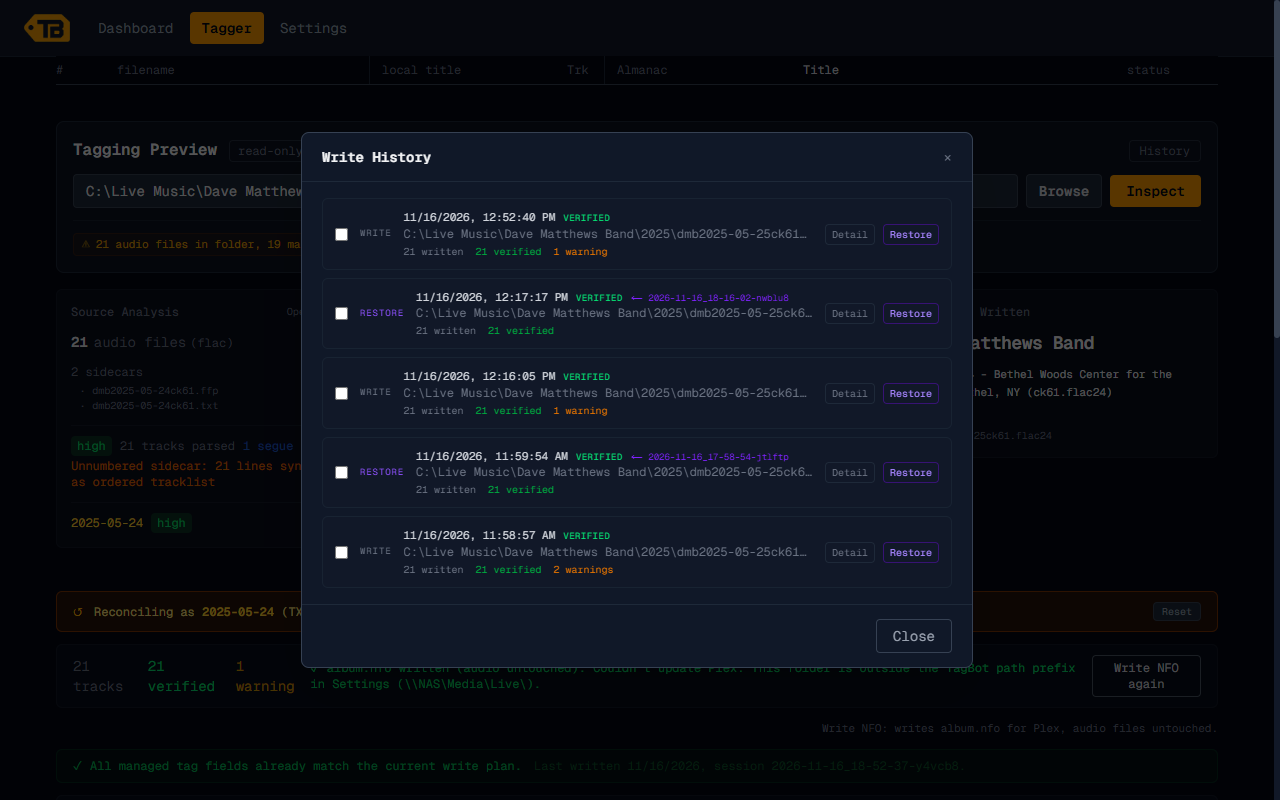
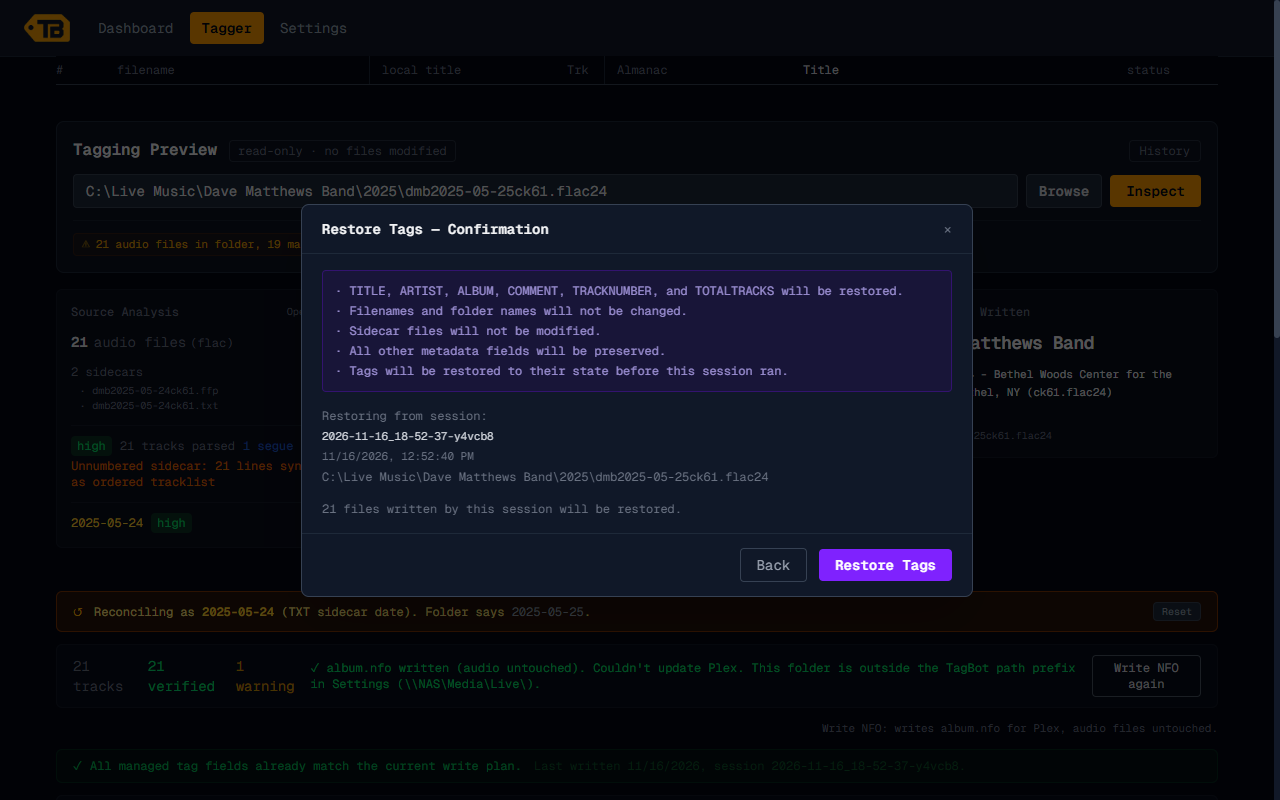
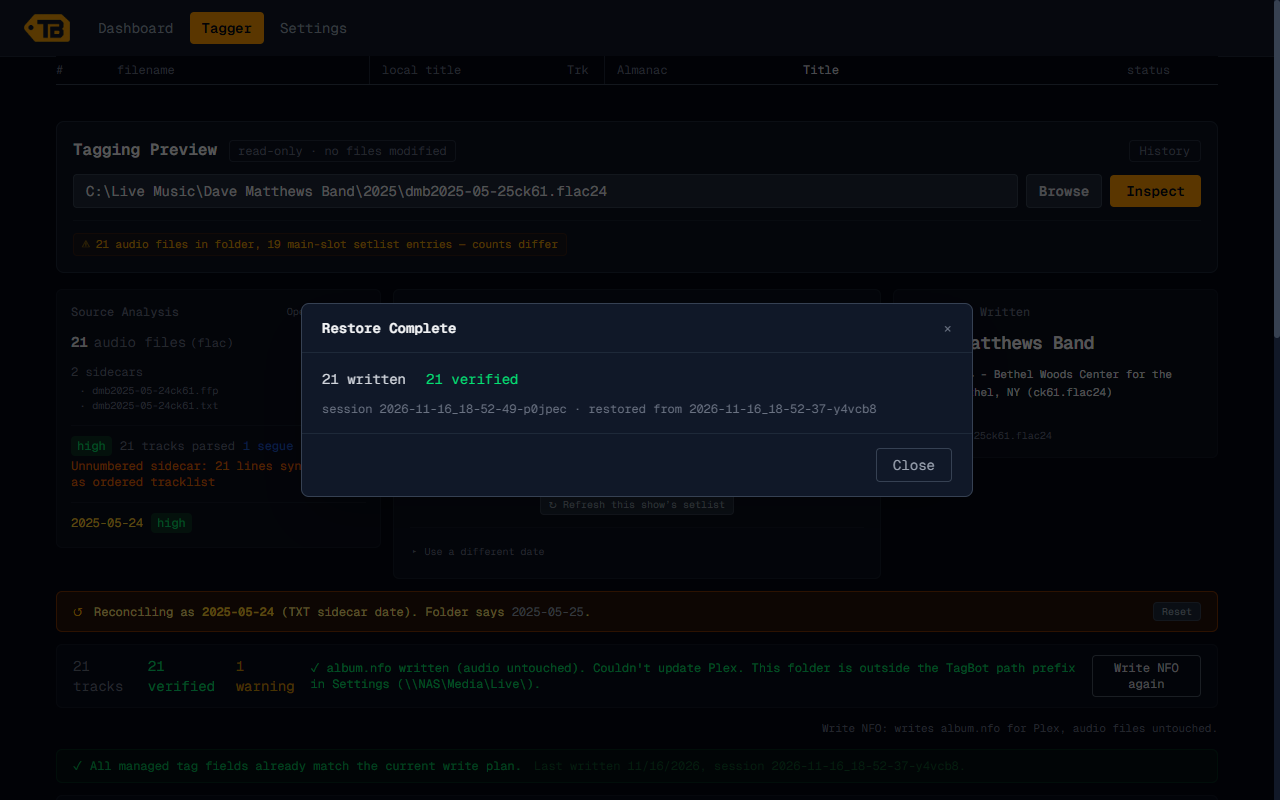
Restore brings back the tag values. To get the original bytes back (so a torrent can seed again) you need to have ticked the exact-restore copy when you wrote.
Batch mode
Point the folder box at a parent folder that holds several shows and press Inspect. TagBot lists every show, inspects each, and tells you which are clean and which need a look. Review Next jumps to the next one that needs you, you settle its date or its flagged rows exactly as above, and Write Ready Shows writes everything that is ready, one show at a time. A Stop after this show button lets you halt a long run.
Set up Plex
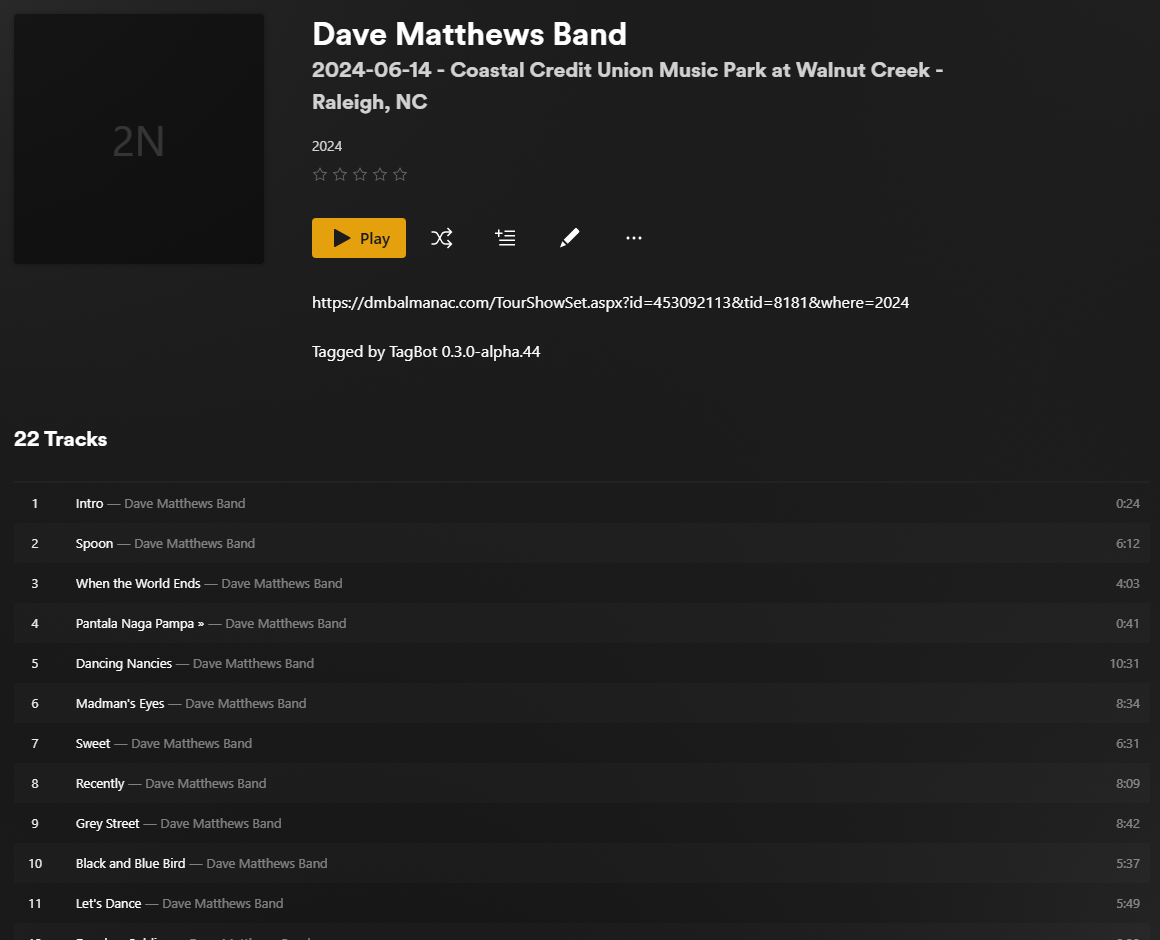
This puts setlist titles, the date and venue, and a year collection in Plex for shows that have an album.nfo, without changing any audio. You do it once.
- Install the agent. In TagBot, open Settings, find Plex integration, press Choose Plex plugins folder & (re)install TagBot NFO Agent… and pick your Plex Plug-ins folder. On Windows that is %LOCALAPPDATA%\Plex Media Server\Plug-ins. TagBot also places the TagBot Music Scanner in the Scanners folder next to it.
- Restart Plex Media Server.
- Show legacy agents. In Plex, Settings, General, turn on Show Legacy Agents.
- Pick them on your music library.Set the library's scanner to TagBot Music Scanner and its agent to TagBot NFO Agent. A new music library is the surest way; switching an existing library in place has not been confirmed.
Then in TagBot press Write NFO on a show and refresh the album in Plex (or let TagBot do it, see Settings). A folder with no album.nfo is left alone and never given wrong titles.
Settings, option by option
The values in these captures are placeholders. Press Save settings at the bottom to keep your changes.
Database
The setlist database TagBot ships with (more than 2,500 DMB shows). The installer manages it, so there is nothing to type.

Scraping
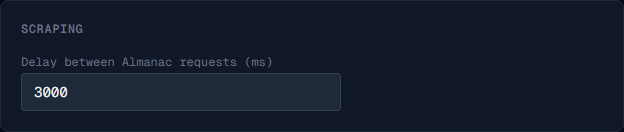
The delay between requests to DMBAlmanac, in milliseconds. The default, 3000, is polite to the site. Leave it unless you have a reason.
Phish.net
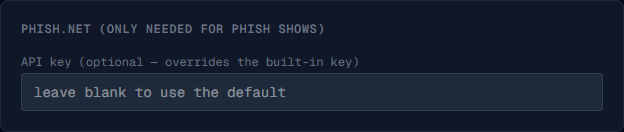
Only for Phish shows. TagBot has a built-in key; type your own here only if you want yours used.
Plex integration
Install the NFO Agent (see Set up Plex). Optional: your Plex server URL, for example http://192.168.1.10:32400, and your Plex token let TagBot refresh the album after Write NFO. If Plex lives on a NAS and sees your media at a different path than this PC does (Plex at /mnt/user/Media/Live/, TagBot at \\NAS\Media\Live\), fill in the two path prefixes so TagBot can find the album; leave both blank if the paths are the same. Repair collections puts the year collection back on albums Plex re-created; it checks every album, so it can take a few minutes.
qBittorrent seeding check
Turns on the seeding protection. Enter your qBittorrent Web UI address (for example http://192.168.1.10:8080), user name and password, press Test connection, then Save. TagBot only reads the torrent list. Leave it blank to write without the check.
Anonymous usage counts
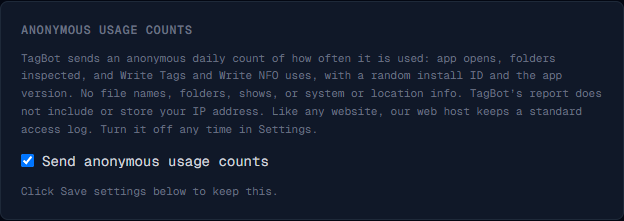
A daily count of how often TagBot is used, with a random install ID and the version. No file names, folders, shows or location. Untick it and nothing is sent. TagBot works the same either way.
Updates
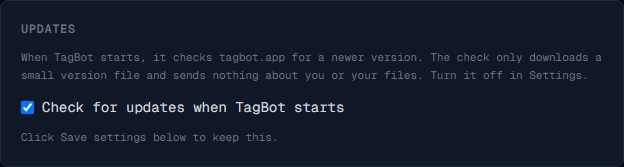
When TagBot starts it checks tagbot.app for a newer version and shows a banner if there is one. The check only downloads a small version file and sends nothing about you or your files. Untick it to stop checking.